Every report in
one organized home
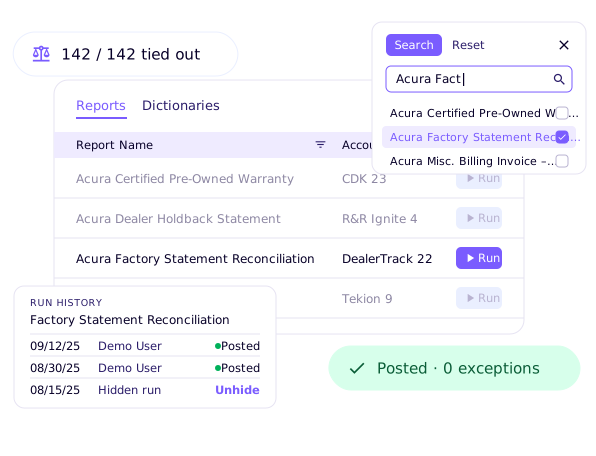
Everything in one place
Run with confidence
Nothing gets lost
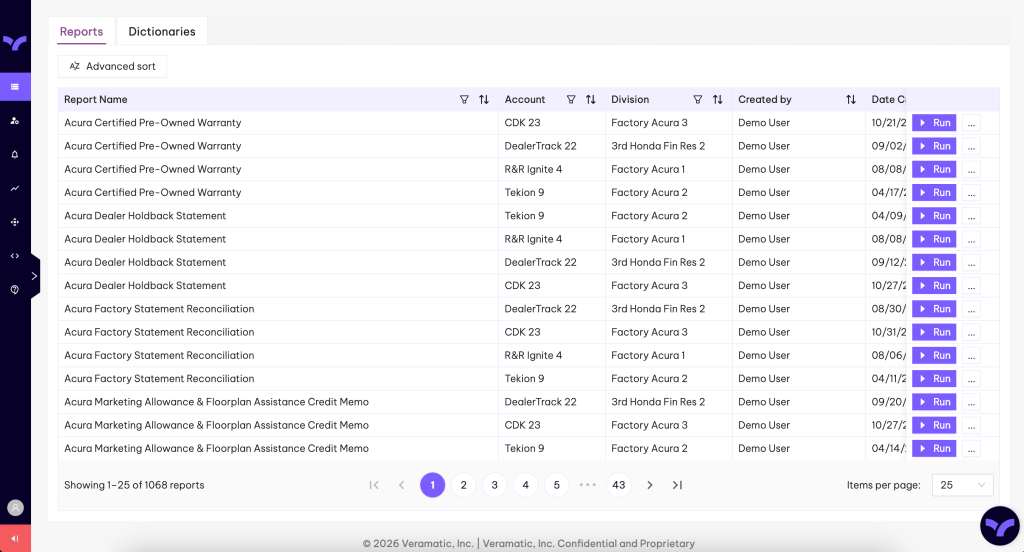
Report Center is your new landing page
When you log in, you’ll land on the Report Center tab instead of Documents. The old Documents and Dictionaries tabs have been combined into one place, and the Dictionary tab now lives inside Report Center — use the top navigation to move between the Reports and Dictionary tabs.
How it works
- Log in — you’ll land on Report Center instead of Documents.
- Use the top navigation to move between the Reports and Dictionary tabs.
Why it matters
Report Center is now the main hub for both Reports and Dictionaries.
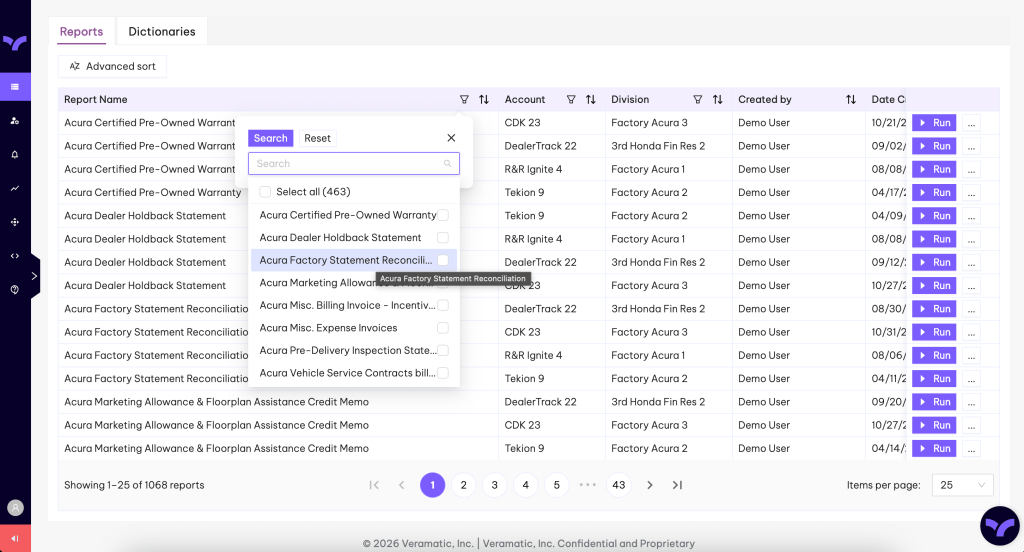
Locating and running a report
In the Reports tab, you’ll see all available reports you can run. The table shows which division and account each report belongs to, and you can sort or filter it to quickly find the report you need.
How it works
- Locate the correct account and division.
- Select the report you want.
- Click Run.
Why it matters
You can be intentional about which report you run — the account and division are always in view.
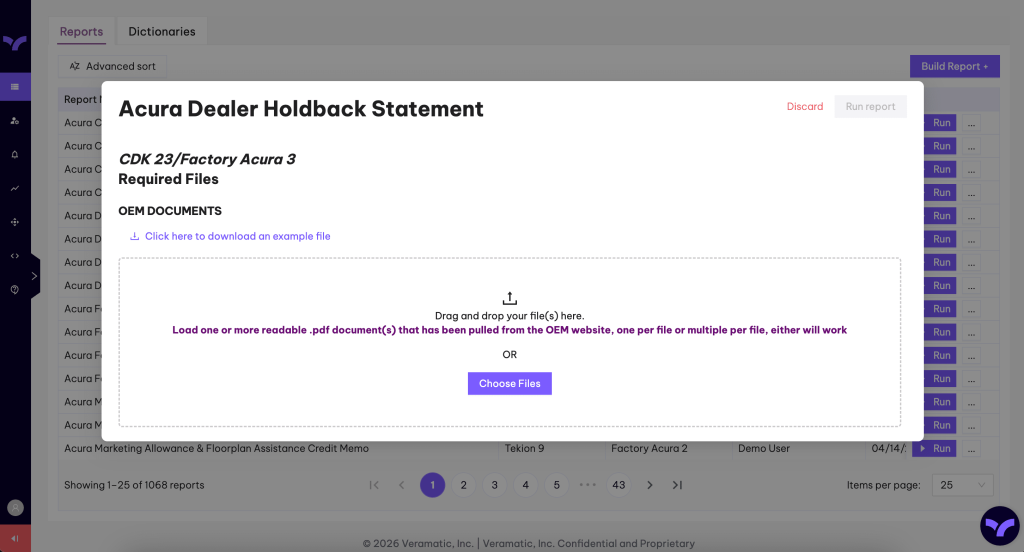
Upload your files with guided checks
After clicking Run, you’ll see a more guided upload experience. Each upload box includes notes to help you choose the correct document and shows the file type expected, such as an OEM document. You can click Download example file to see the expected format before uploading.
How it works
- Drag and drop or select each file into the correct box.
- If a file is wrong, you’ll get clear feedback and can remove it — the system tells you exactly which one is the issue.
- Once every file passes its checks, click Run Report.
Why it matters
Intelligent error handling keeps you from running a report that has file issues.
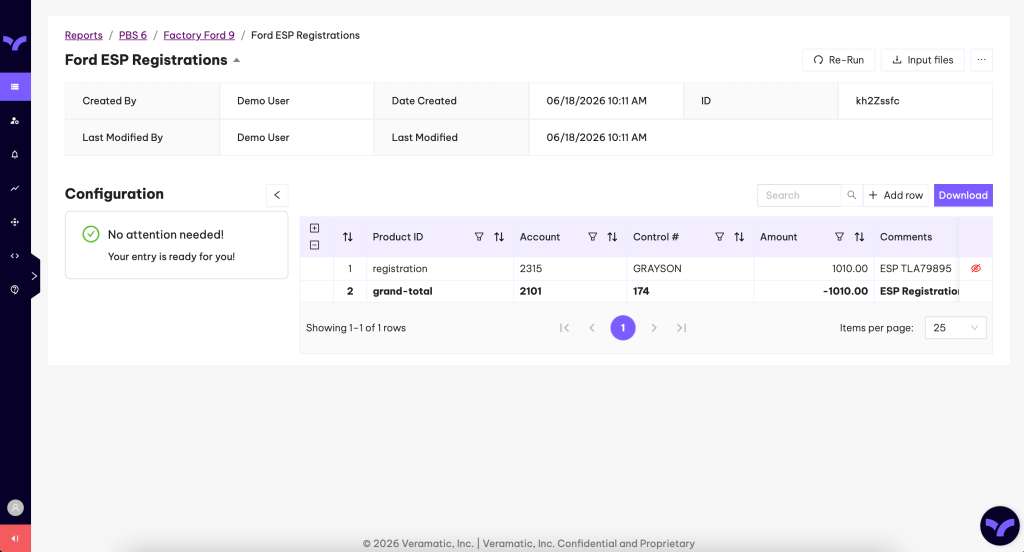
Viewing your rendered report
The Report Meta header now shows details such as the creator, who ran it, the last run time, and a unique identifier. The Configuration section highlights any issues or required actions — and confirms when no attention is needed. You can hide or unhide rows instead of deleting them, search for specific items, and re-run from a clearly labeled button in the top-right corner.
How it works
- Check the Configuration section — if it shows no attention needed, you’re set.
- Hide or unhide rows as needed; hidden rows won’t appear in your download.
- When multiple tabs are present, you will be presented with multiple export options within one single Download or Copy button.
Why it matters
A dedicated, cleaner layout for working through exceptions.
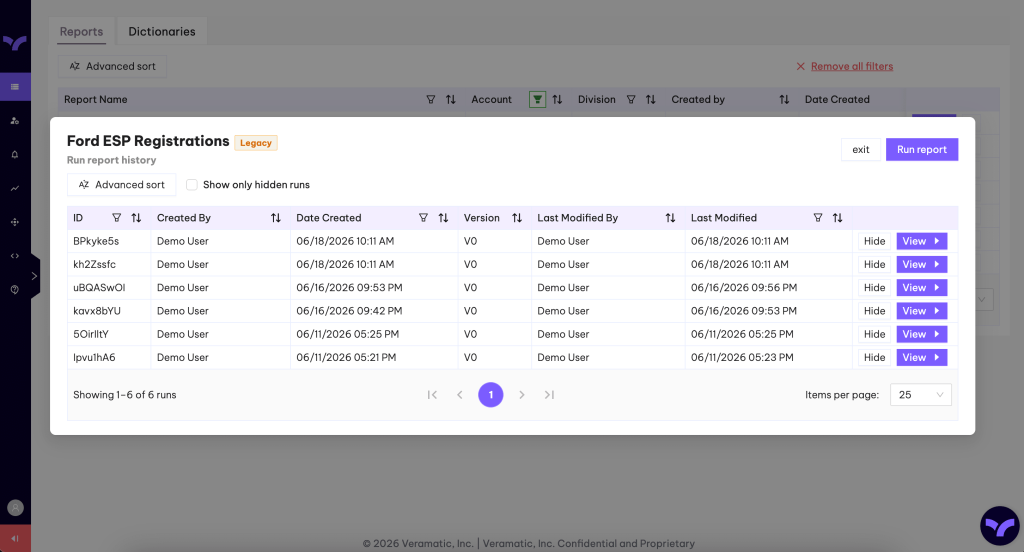
View and manage report run history
Run history is now organized and viewed for each report individually. Open the menu next to the Run button and then click View Run History, and a window shows the past runs for just that report.
How it works
- Click the … button for a report, then choose View Run History.
- Hide runs you don’t need — use Show Only Hidden Runs to review them.
- Click Unhide to make a run visible again.
Why it matters
A dedicated, report-specific view of your historical runs.
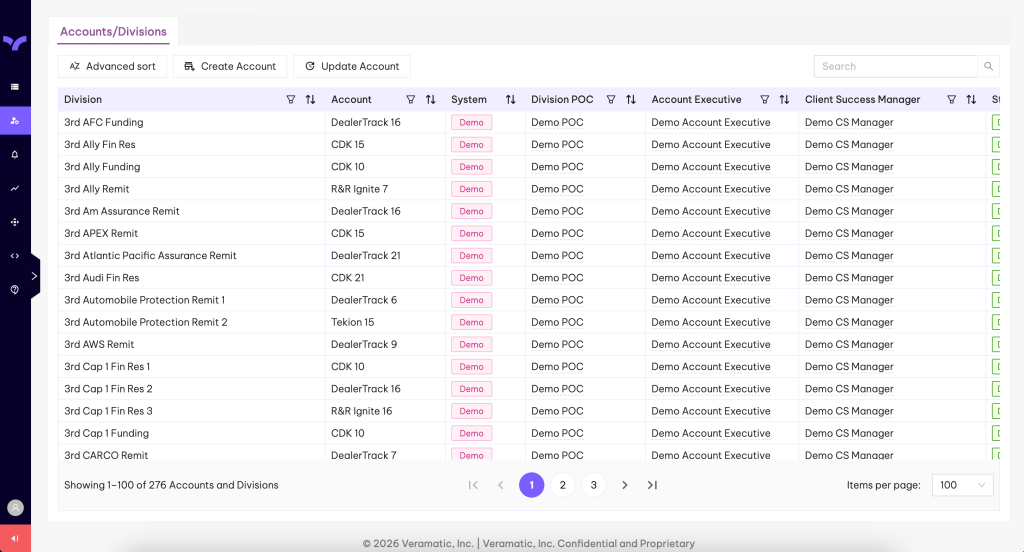
Accounts & Divisions, refreshed
Accounts and Divisions still work the same way, but they’re now presented in a clean table style — the same look as the Reports and Dictionaries tabs. Hover over a contact name to see their phone number and email without opening the profile.
How it works
- Hover a contact name to view their phone and email.
- Click a division or account name to open the full profile.
Why it matters
The same details you had before, in a cleaner layout that matches the new look and feel of Veramatic.
See Report Center in action
Get a personalized walkthrough of Report Center and the rest of the Veramatic platform — built for the way your back office actually works.